![MOMS Email Signature-2.png]](https://knowledge.myonemedicalsource.com/hs-fs/hubfs/MOMS%20Email%20Signature-2.png?height=50&name=MOMS%20Email%20Signature-2.png)
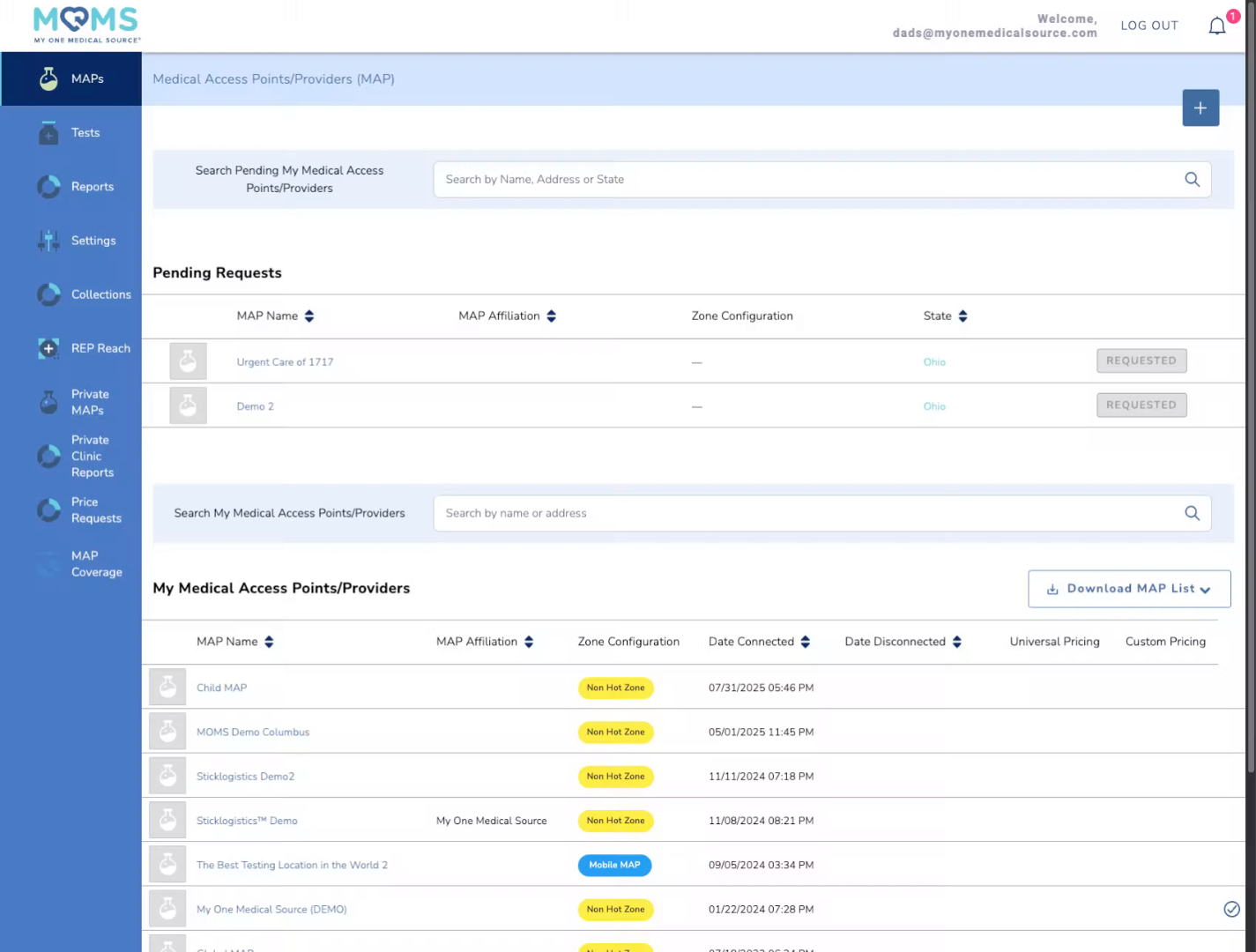
1. Once Logged Into MOMS
Users with Admin access to your MOMS account will see all available menus of the platform in the left-hand navigation. Updating your organization's payment method is done through the Settings menu.
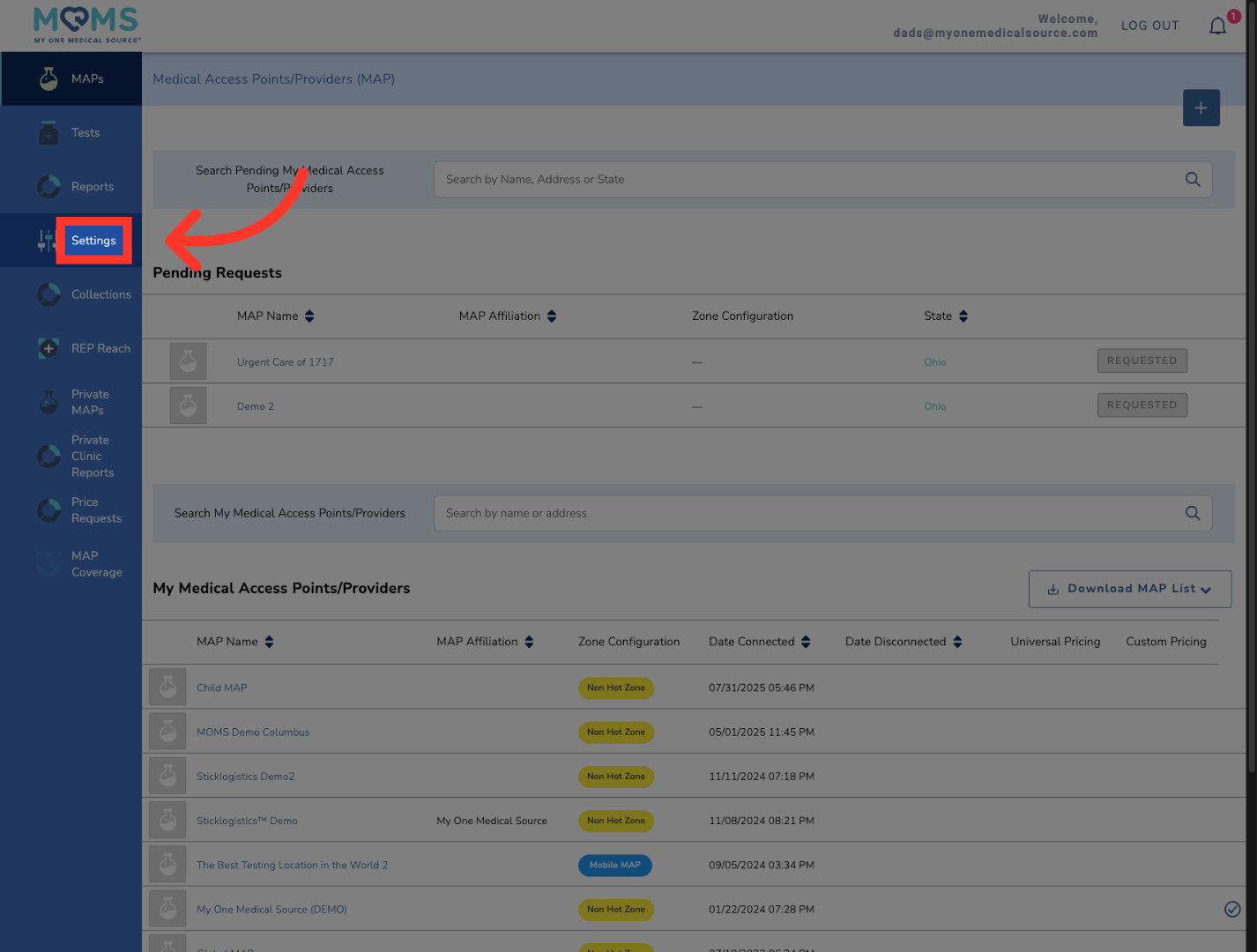
2. Access Settings Menu
Click "Settings" to open the main configuration options for your account.
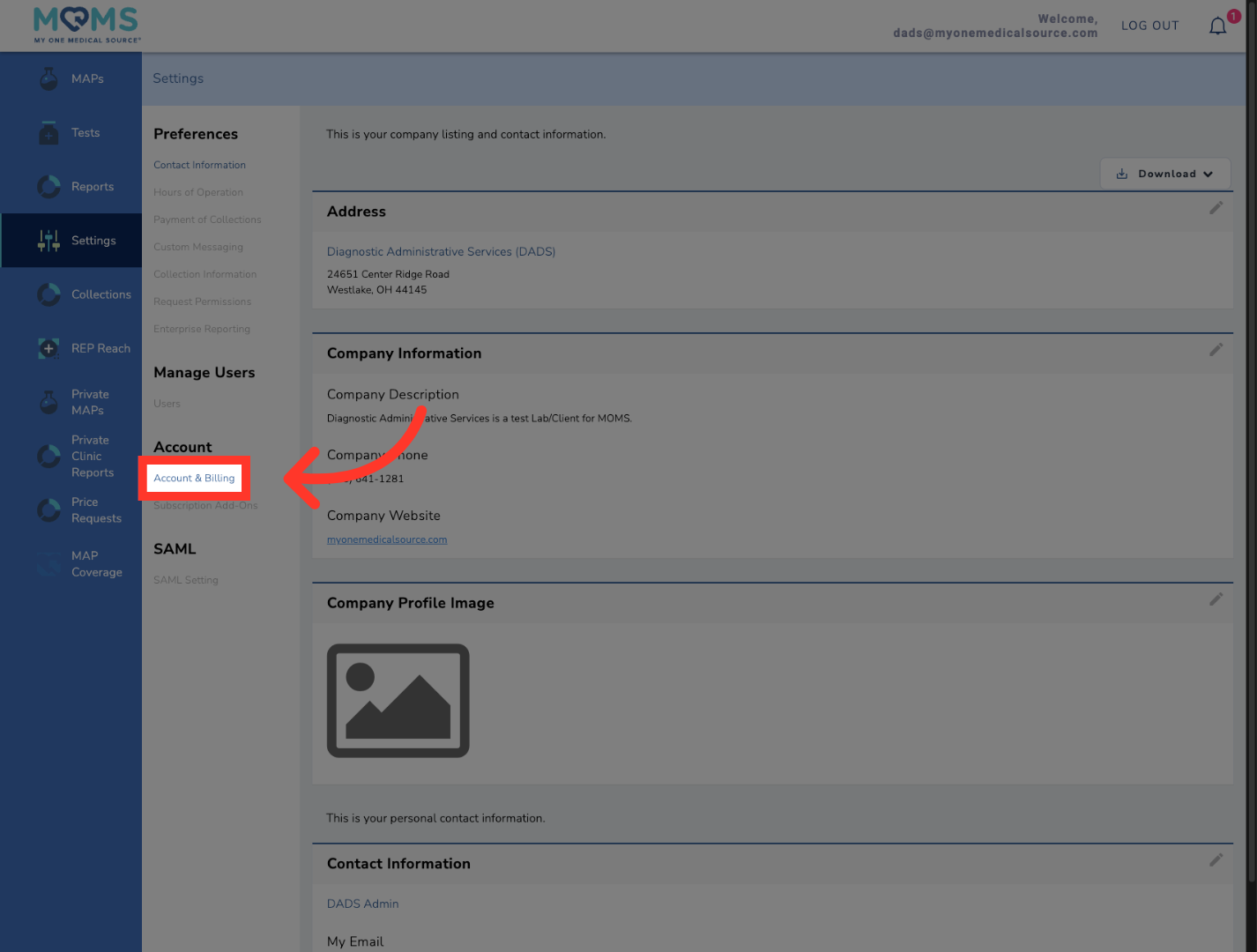
3. Open Account & Billing Section
Click "Account & Billing" to view and manage your billing information and payment methods.
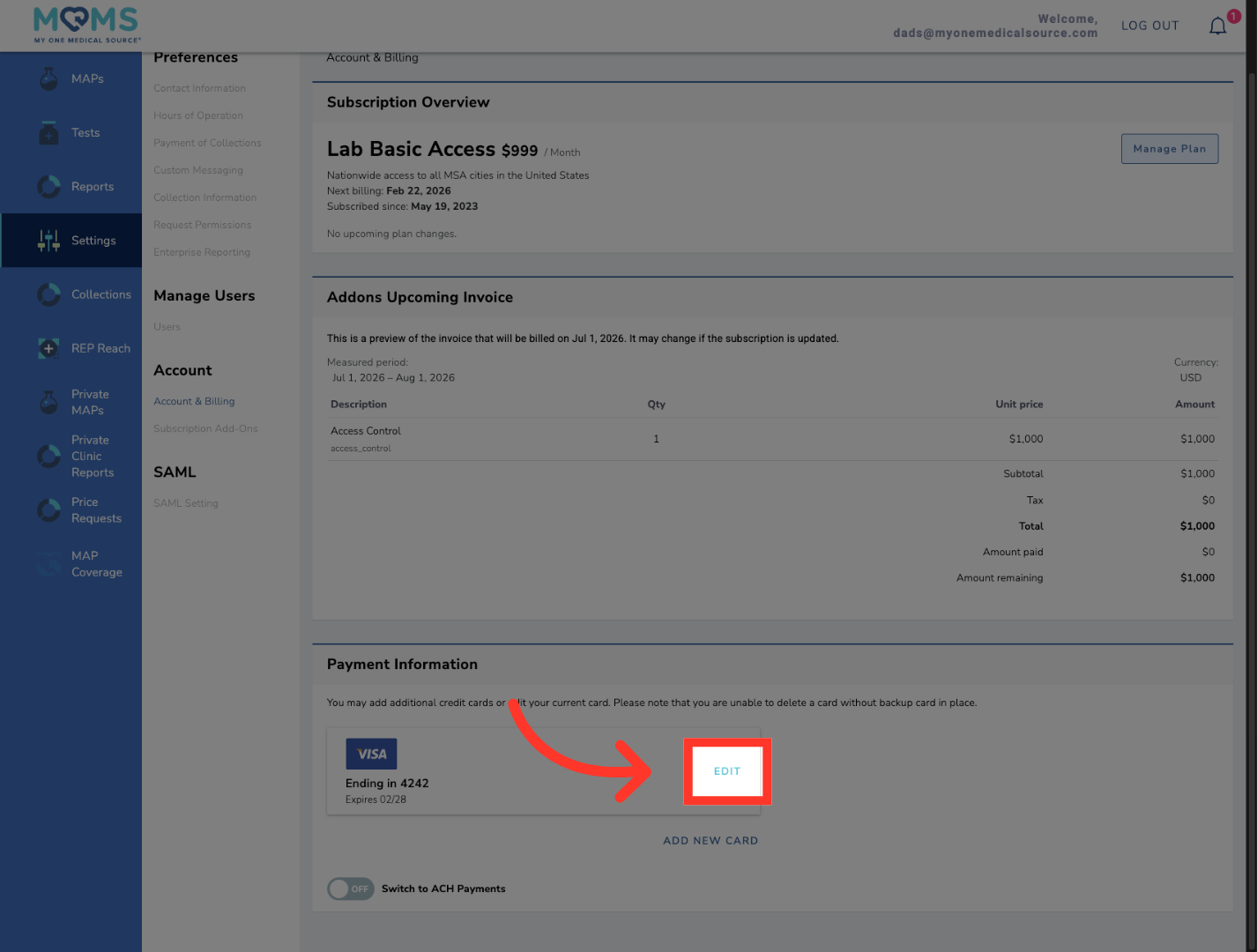
4. Edit Billing Information
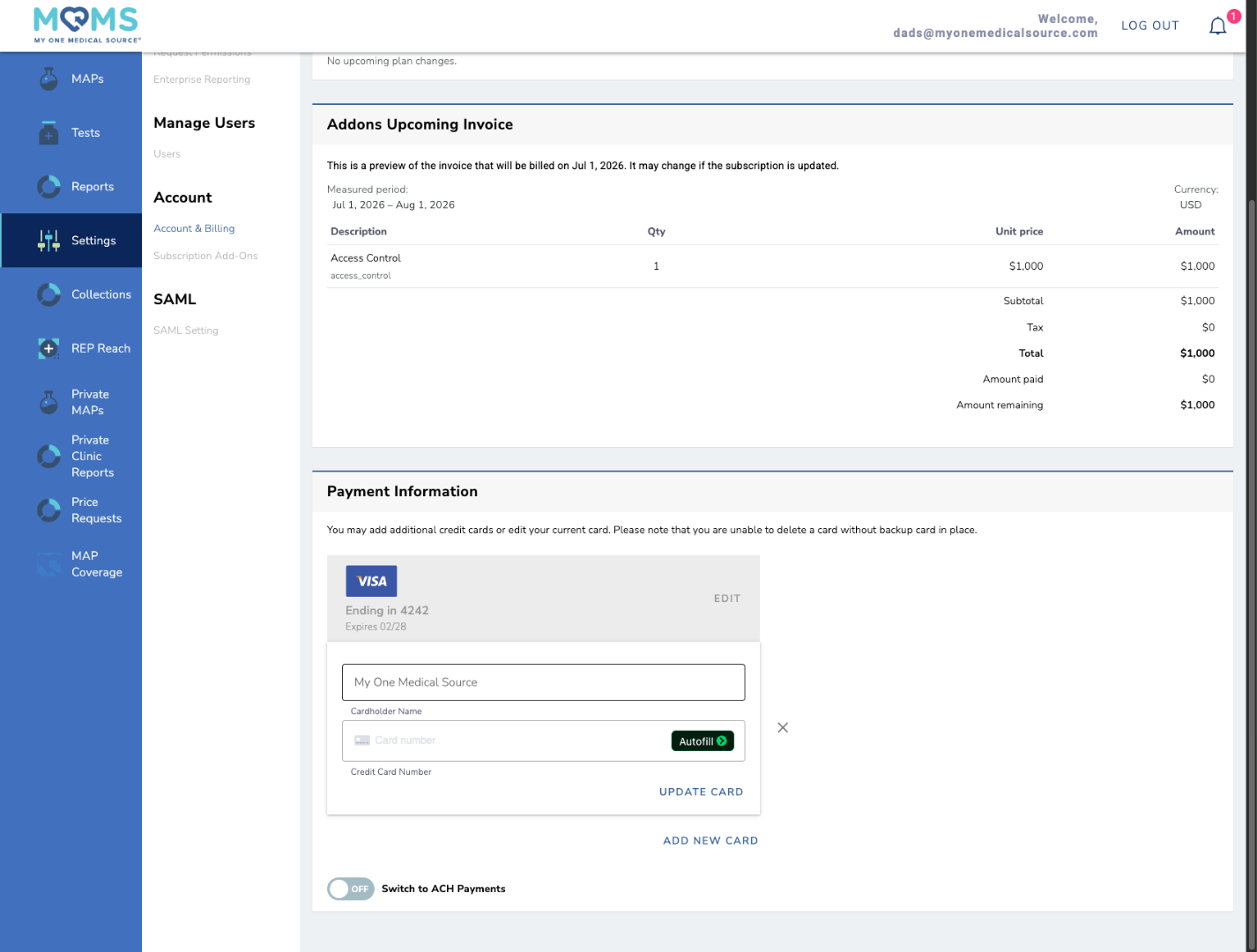
Click "EDIT" to modify your current billing details and payment options. Please note that a payment method is required to be on file for your account to be active. You are able to edit the existing card on file, add a new card, or switch to ACH payments.
5. Updating Existing Card
To update your existing card, click the edit button and enter the new card information. To save, simply click update card.
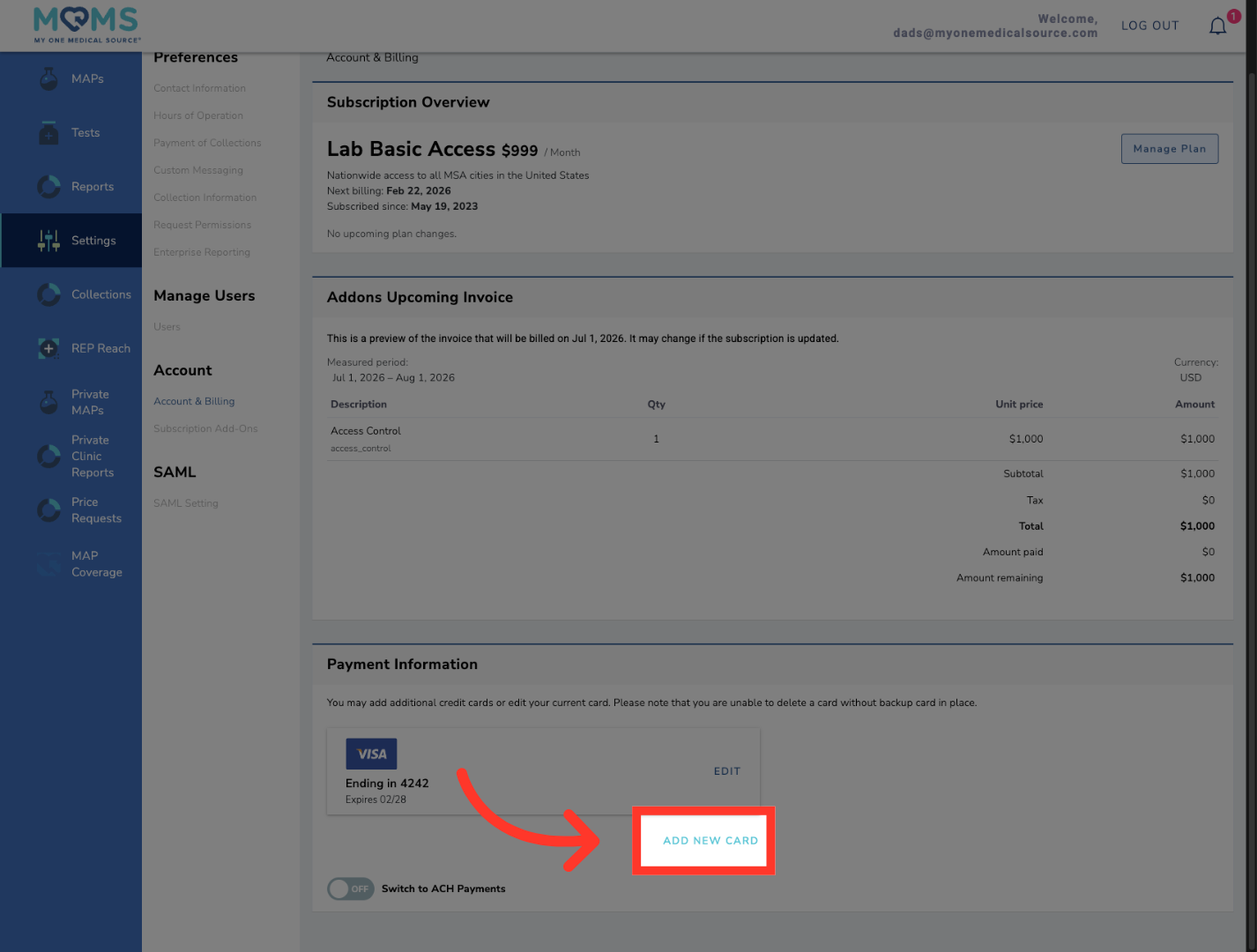
6. Add New Payment Card
Click "ADD NEW CARD" to begin adding a new credit or debit card to your account.
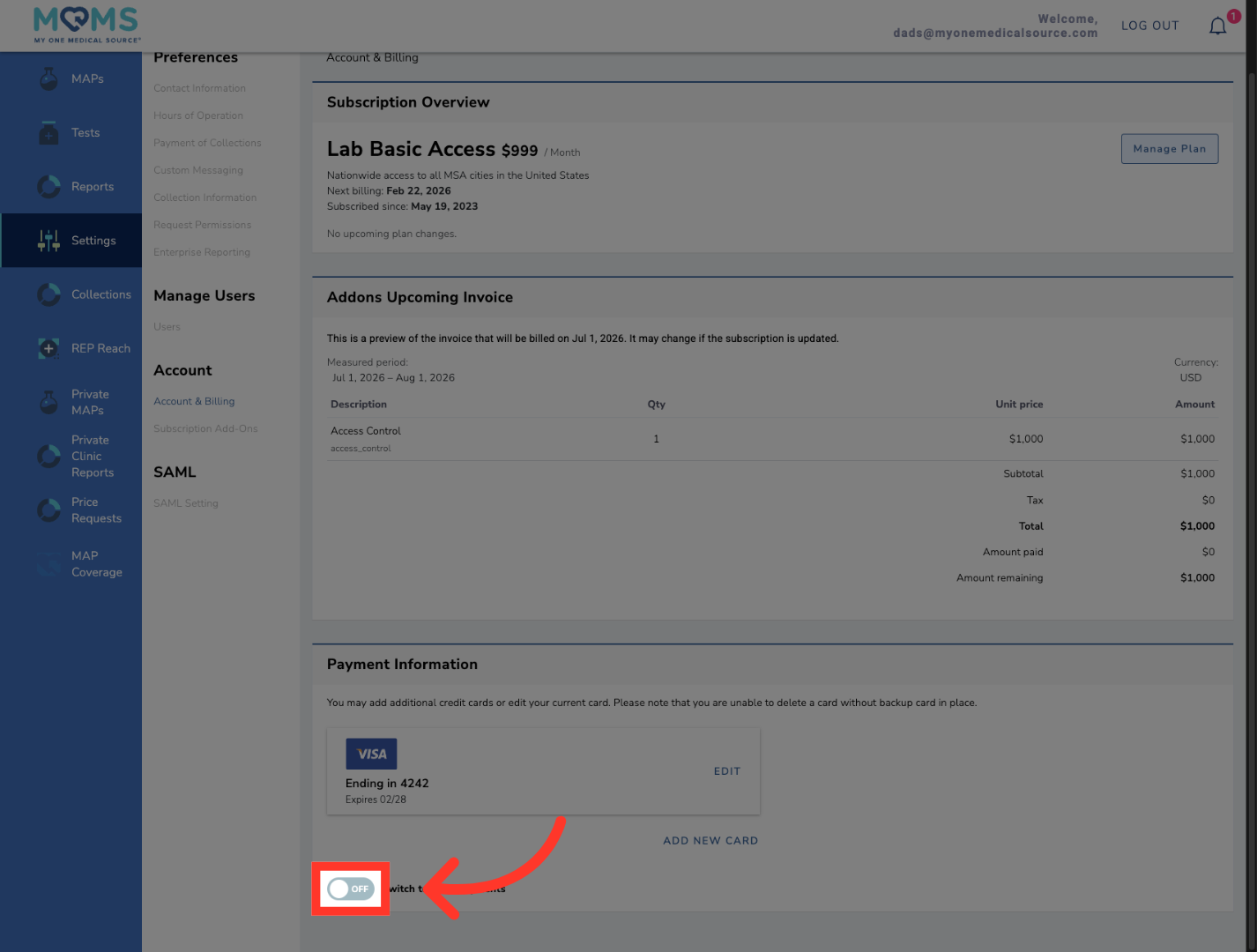
7. Switching to ACH payments
To switch to ACH payments, Click the button to toggle it from off to on.
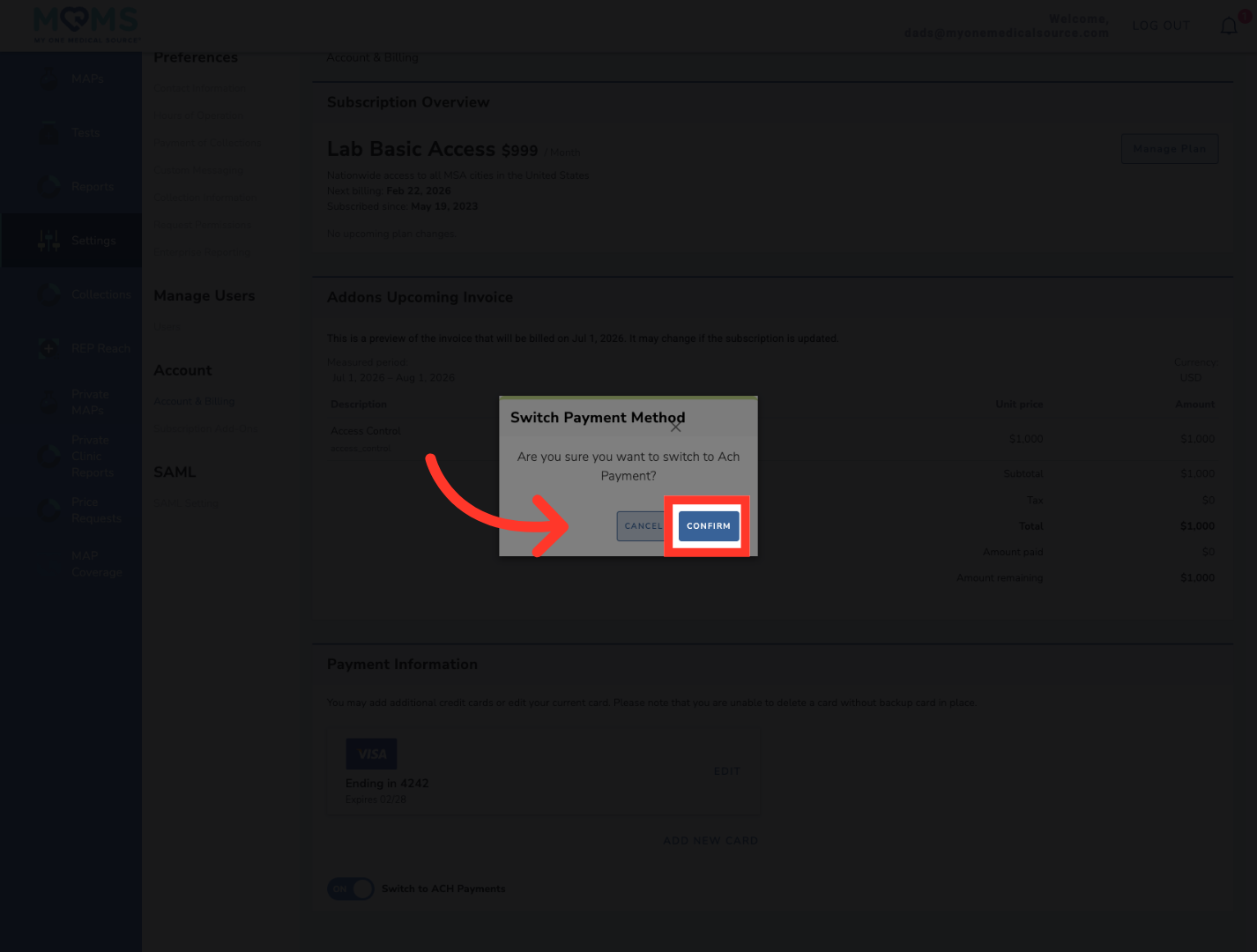
8. Adding ACH Information
Click "Confirm" to proceed with adding your specific bank information details to switch to ACH payments.
You have successfully navigated the account billing settings to manage your payment methods in the My One Medical Source platform. This process allows you to add, enable, or utilize ACH payment securely for your account.